Choosing a touchscreen monitor is not simply a matter of selecting the largest display or the highest resolution. Different technologies respond differently to fingers, gloves, dust, moisture, pressure, and repeated use. A retail counter may need fast projected capacitive touch, while a factory floor may depend on infrared or resistive technology. The right choice begins with the working environment.
This guide examines the top touchscreen monitor types, including projected capacitive, resistive, infrared, and surface acoustic wave models. It compares their touch accuracy, durability, maintenance needs, brightness, and total ownership cost. Small details matter. A cashier may touch the screen hundreds of times daily. A technician may operate it with thick gloves. A classroom display may need wide viewing angles and simple cleaning.
Bill Buxton, a respected human-computer interaction researcher, has said, “Technology is not the experience.” His point remains important here. A touchscreen monitor can look impressive on a showroom wall yet feel slow, fragile, or awkward during real work. Specifications alone cannot reveal that problem. Hands-on testing still matters.
No single type wins every room. That is the part many buying guides overlook. Even capacitive screens, often praised for their smooth response, can struggle with gloves or heavy moisture. Resistive screens may feel less modern, but their pressure-based operation can be valuable in harsh settings. By comparing practical strengths and weaknesses, this overview helps readers question marketing claims and choose a display that fits actual users, not imagined ones.
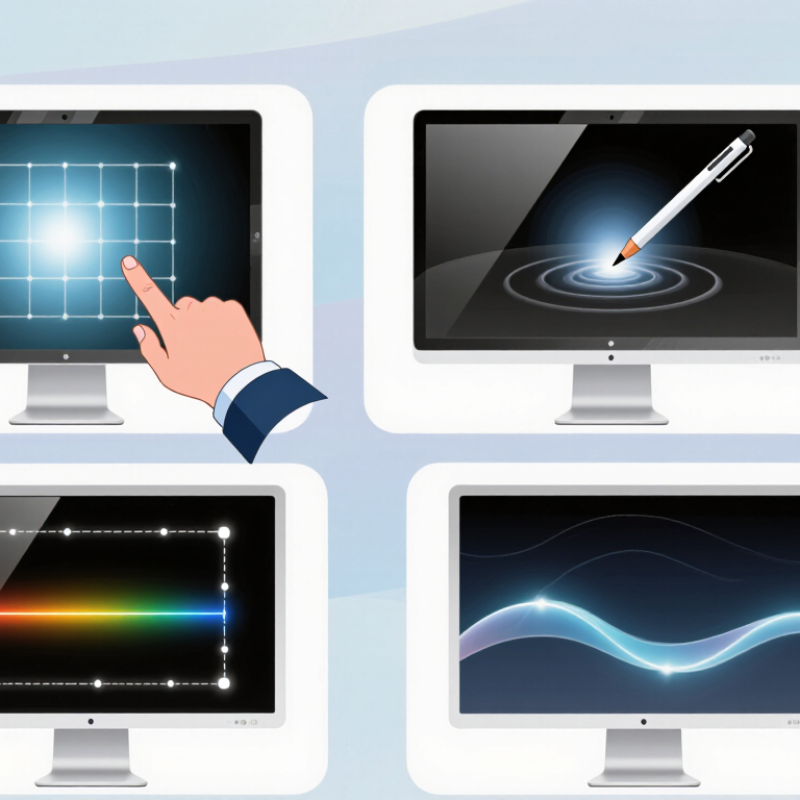
Touchscreen monitors are classified by how they detect contact. Resistive models use pressure between flexible layers. They work with gloves, pens, and firm fingertips. Projected capacitive screens detect changes in electrical charge. They usually feel smoother and support gestures, but thick gloves may reduce accuracy. Infrared screens create an invisible grid across the display. Any object that interrupts the grid can trigger input.
Their structure provides another useful classification. Desktop touchscreen monitors suit offices, classrooms, and reception counters. Open-frame models fit into kiosks or custom equipment. Rugged monitors use sealed housings, reinforced glass, and wider operating-temperature ranges. A dusty workshop demands different protection than a quiet office. Check the enclosure rating, mounting method, and cleaning requirements before choosing.
Touch technology is only one part of the decision. Display size, brightness, viewing angle, response time, and touch latency also affect daily use. During practical testing, a screen can seem accurate on a clean desk but struggle near water droplets or strong sunlight. That result is easy to overlook. Capacitive touch often feels natural, yet resistive touch can be more dependable for gloved operation. Infrared systems offer flexible input, though damaged frames may create blind areas. Classification helps narrow the options, but real working conditions should make the final decision.
Resistive, capacitive, and infrared screens respond to touch in different ways. Understanding their physical behavior helps you choose the right monitor for a real working environment.
Resistive panels detect pressure between layered surfaces. A finger, gloved hand, or plastic stylus can activate them. They suit workshops, clinics, and counters where users need precise input. However, the surface may feel less fluid, and heavy pressure can eventually affect its layers.
Capacitive screens sense changes in electrical charge. They usually provide bright images, smooth scrolling, and reliable multi-touch gestures. Bare fingers work best. Thick gloves, moisture, or dirt may reduce accuracy.
Infrared monitors use invisible light beams around the display edges. Any object that interrupts the beams can create input, including a gloved finger or stylus. These screens work well for large interactive displays, although dust and strong sunlight can cause false touches. Calibration is sometimes overlooked.
Tips: Match the technology to the setting, not just the specification sheet. Test the monitor with gloves, dry hands, and a simple stylus. Check viewing angles under actual room lighting. Resistive models reward precision, while capacitive models feel faster for everyday navigation. Infrared systems offer flexibility, but they need clean edges and careful installation. No option wins every room. My own testing has shown that “responsive” can mean different things to different users. A screen that feels perfect at a desk may frustrate someone wearing work gloves.
LCD touchscreen monitors remain practical for offices, classrooms, and control rooms. They use liquid crystals to shape light from a backlight. Images look consistent, and replacement costs are often manageable. However, viewing angles and black levels vary between panel designs. A capacitive touch layer can detect light finger taps, while a resistive layer responds to pressure. That difference matters when users wear gloves or use a stylus.
LED touchscreen monitors are usually LCD monitors with LED backlighting. LED is not normally a separate panel technology. This detail is often overlooked in product descriptions. LED backlights can create slim displays, lower heat output, and steady brightness. In a bright office, adjustable brightness and an anti-glare surface may matter more than impressive color claims. Reflections can make even a sharp screen tiring to use.
OLED touchscreen monitors produce light from individual pixels. They can show deep blacks, strong contrast, and vivid colors without a traditional backlight. These qualities suit digital artwork, video review, and dark interface designs. Still, OLED panels can cost more and may require careful brightness management during static use. A fixed dashboard left onscreen for hours deserves attention. No type wins every test. Room lighting, touch accuracy, viewing distance, and daily workload should guide the choice. My first assumption would favor OLED, but practical testing may point toward LCD or LED instead.
What Are the Top Touchscreen Monitor Types? The best choice depends on movement, working distance, and installation limits. Portable touchscreen monitors suit mobile teams, field engineers, and small workspaces. They usually connect through USB-C and slide beside a laptop. A 15.6-inch panel can fit inside a work bag, although brightness may suffer outdoors. Grand View Research projects the global touchscreen display market to grow at an 8.6% CAGR from 2024 to 2030. That growth reflects demand for flexible, interactive screens.
Desktop touchscreen monitors provide a steadier setup. They work well for design review, point-of-service tasks, training desks, and collaborative planning. A height-adjustable stand matters more than many buyers expect. So does a matte surface. Fingerprints become distracting under strong office lighting. The MarketsandMarkets Interactive Display Market report estimates growth from about 10.3 billion dollars in 2023 to 16.1 billion dollars by 2028. These figures suggest continued investment in interactive workspaces, but forecasts are not guarantees.
Wall-mounted touchscreen designs support reception areas, control rooms, classrooms, and public information points. They save desk space and keep interfaces visible at standing height. Installation requires careful cable routing, ventilation, and secure mounting. A poorly positioned screen creates shoulder strain quickly. That detail is often missed. The ideal height depends on the main users, viewing angle, and interaction frequency. Portable models offer mobility, desktop models offer control, and wall-mounted models create shared access. Real rooms are messier than product charts.
| Evaluation Dimension | Portable Touchscreen | Desktop Touchscreen | Wall-Mounted Touchscreen |
|---|---|---|---|
| Typical screen size | Approximately 10–17 inches | Approximately 15–32 inches | Approximately 21–55 inches or larger |
| Primary installation | Carried and placed on temporary work surfaces | Placed on a desk, counter, or workstation | Fixed directly to a wall or compatible mounting structure |
| Power options | USB-C power, AC adapter, or built-in battery on selected models | Usually AC-powered; USB-C power is available on some smaller displays | Usually permanent AC power, often routed through the wall or mounting system |
| Common touch technology | Projected capacitive touch, typically supporting finger input and gestures | Projected capacitive touch; some specialized units use infrared touch | Projected capacitive or infrared touch, depending on size and application |
| Typical connection methods | USB-C, HDMI, Mini DisplayPort, or wireless casting on selected models | HDMI, DisplayPort, USB-C, and USB touch-data connection | HDMI, DisplayPort, USB, network connection, or integrated computing hardware |
| Best operating environment | Travel, field work, presentations, classrooms, and flexible workstations | Offices, design work, point-of-sale counters, control desks, and home workspaces | Public information points, reception areas, classrooms, retail spaces, and control rooms |
| Mobility | High; designed for frequent relocation | Low to moderate; can be moved but normally remains at one workstation | Very low after installation |
| Ergonomic flexibility | Flexible viewing angle; stands and covers vary by design | Usually offers the greatest adjustment range, including tilt, height, and arm mounting | Viewing height and angle depend mainly on installation position and mount type |
| Durability considerations | Needs protection from drops, cable strain, and frequent transport | Designed for regular indoor use with moderate physical handling | Commercial models may include reinforced glass, sealed edges, and heavier-duty enclosures |
| Advantages | Lightweight, space-saving, easy to share, and convenient for mobile use | Balanced performance, comfortable long-session use, and broad connectivity | Highly visible, space-efficient, and suitable for shared or public interaction |
| Limitations | Smaller workspace, fewer adjustment options, and possible dependence on an external device | Requires desk space and cable management; not ideal for public-facing installation | More difficult to relocate, install, service, or replace |
| Most suitable choice when | You need touch input in multiple locations or while traveling | You need a permanent interactive display for personal or professional desk work | You need a visible, shared interface in a fixed indoor location |
Note: Specifications and features vary by display size, operating system, intended environment, and installation design.
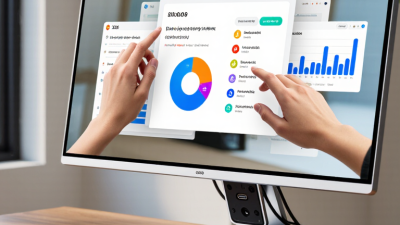
Touchscreen monitors vary by touch technology, size, brightness, and mounting design. Projected capacitive screens suit offices, control rooms, and retail counters. They respond quickly to light finger contact and support multi-touch gestures. Resistive screens work better where users wear gloves or use a stylus. They require firmer pressure but can perform reliably in workshops and outdoor stations. Infrared touchscreens offer larger display options, although dust may affect accuracy around the screen edges.
Tips: Match the monitor to the user’s hands, environment, and workflow. Check glove compatibility, viewing angles, cleaning requirements, and response time. A bright panel matters near windows. A sealed enclosure matters in dusty areas. Test the screen while wearing the exact gloves used on site. Small differences become obvious during repeated tasks.
For public kiosks, choose strong glass, simple menus, and wide viewing angles. For design work, prioritize color accuracy and precise pen input. Medical or industrial applications need stable calibration and easy disinfection. Mounting depth also matters when desk space is limited. During evaluations, I would test glare, palm rejection, and accidental touches for several hours. Specifications can look impressive, but real users may still struggle with tiny buttons. A larger display is not always better. It can increase reach distance and fatigue.