What Are the 2026 Top Touch Screen Monitors?

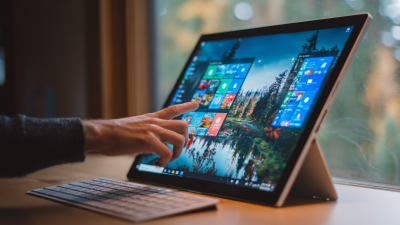
Choosing the best touch screen monitor in 2026 requires more than checking screen size or resolution. Buyers now expect smooth touch response, accurate colors, strong brightness, and comfortable viewing during long work sessions. A good display should respond quickly to a fingertip, even when users drag windows, sketch diagrams, or control smart-home software. Small details matter.

This guide examines the leading 2026 models through practical and professional criteria. We will compare touch accuracy, refresh rates, panel quality, connection options, built-in speakers, ergonomic stands, and operating-system compatibility. USB-C power delivery can reduce desk clutter, while an adjustable stand may prevent neck strain during extended use. For creative work, pressure sensitivity and low writing latency deserve close attention. For offices, reliable multitouch performance and easy cleaning may matter more than extreme color coverage.

Real-world testing remains essential. A monitor can appear impressive in a product listing but feel slow when several fingers move across the glass. Reflections may also become distracting beside a bright window. That weakness is easy to overlook. We will consider expert specifications alongside everyday experience, including setup time, menu controls, cable management, and long-term comfort. Not every highly rated display will suit every user. Some recommendations may change as firmware updates, prices, and new compatibility information emerge. That uncertainty deserves honest attention.

Whether you need a compact second screen, a large collaborative display, or a color-focused creative tool, this review aims to clarify the trade-offs. The top choice is not always the most expensive one. It is the model that fits your workflow, space, budget, and expectations.
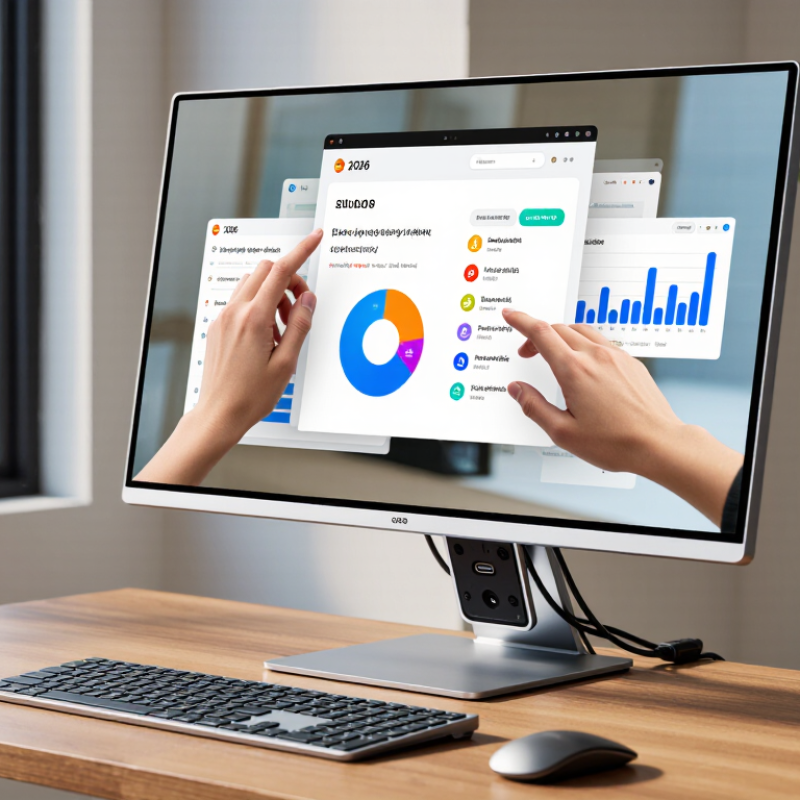
What Are the 2026 Top Touch Screen Monitors?

What Defines a Top Touch Screen Monitor in 2026?

A top touch screen monitor in 2026 should feel immediate, accurate, and comfortable during long sessions. Touch response matters more than impressive numbers. A good display follows a fingertip without visible delay or accidental jumps. During testing, check small icons, diagonal lines, and two-finger gestures. These simple actions reveal poor calibration quickly.

Image quality also defines the experience. Look for sharp text, balanced brightness, wide viewing angles, and low reflection. A matte surface helps under office lights, but it may slightly soften contrast. That trade-off deserves attention. Adjustable height and tilt are essential, especially when users switch between typing and touching. Strong stands, accessible ports, and reliable compatibility with current operating systems add practical value. A top model should also support accurate color work when used for design or education.

Tips: Test the monitor near a window. Touch every corner. Check whether your palm creates unwanted input. Review its warranty, repair options, and published safety certifications. If possible, use it for one full workday before deciding. Specifications can look excellent, yet comfort may still disappoint. Personally, I would not trust touch accuracy from a short demonstration alone. Long-term use exposes heat, glare, cable problems, and tiring viewing angles. Those details often separate a genuinely useful monitor from a merely modern-looking one.
Key Display Features and Touch Technologies to Compare

Choosing a leading touch screen monitor in 2026 starts with the touch layer, not the glossy panel. Projected-capacitive technology usually feels smooth and responsive, much like tapping a modern tablet. Look for ten-point multitouch, low touch latency, and accurate edge detection. Small details matter. During testing, drag a thin line across each corner, then use pinch gestures on a dense map. Some panels track perfectly in the center but lose precision near the bezel. That flaw is easy to miss in a showroom.

Display quality still determines whether touch feels useful. Compare resolution, brightness, contrast, viewing angles, and refresh rate for the intended room. A bright office may need 400 nits or more, while a dim desk can expose harsh glare instead. An anti-glare coating reduces reflections, but overly coarse coatings can soften text. Check color coverage and factory calibration for design work, editing, or dashboards. One practical test is opening a white document and inspecting gray text from the side. Comfort counts too. Height adjustment, tilt range, VESA support, and a stable stand prevent a useful screen from becoming tiring.

Touch technology also changes with conditions. Infrared touch can work with gloves and larger objects, while PCAP often offers cleaner gesture control. Resistive systems may respond to a stylus or fingernail, but they can feel less fluid. Ask whether touch works through moisture, and test the drivers across your operating system. USB-C with video and power can reduce desk clutter; separate USB touch connections may be more dependable on older hardware. My own mistake was prioritizing refresh rate over palm rejection. Fast animation looked impressive, yet accidental touches disrupted note-taking. That trade-off deserves honest testing.

What Are the 2026 Top Touch Screen Monitors? - Key Display Features and Touch Technologies to Compare

Monitor Profile Typical Screen Size Native Resolution Panel Technology Touch Technology Typical Touch Capacity Refresh Rate Typical Brightness Touch Surface Best-Fit Applications
Professional 4K Touch Monitor 27–32 inches 3840 × 2160 pixels IPS LCD Projected capacitive 10-point multitouch 60–75 Hz 300–500 cd/m² Anti-glare glass; smooth finger input Design review, digital signage, productivity, control interfaces
High-Refresh Interactive Monitor 24–27 inches 2560 × 1440 pixels Fast IPS LCD Projected capacitive 10-point multitouch 120–165 Hz 300–400 cd/m² Low-friction coating; improved motion clarity Interactive training, creative work, demonstrations, responsive desktop use
Large-Format Collaboration Display 43–65 inches 3840 × 2160 pixels IPS LCD or VA LCD Infrared optical touch 20–40 touch points 60 Hz 350–500 cd/m² Tempered protective glass; works with fingers and passive styluses Classrooms, meeting rooms, group annotation and presentations
Bright Public-Environment Touch Display 21.5–32 inches 1920 × 1080 or 3840 × 2160 pixels IPS LCD Projected capacitive or infrared optical 10–20 touch points 60 Hz 700–1,500 cd/m² Anti-glare, chemically strengthened cover glass Retail kiosks, transportation, hospitality and semi-outdoor installations
Precision Stylus Monitor 22–32 inches 2560 × 1440 or 3840 × 2160 pixels IPS LCD Electromagnetic resonance or active-pen digitizer Finger touch plus pen input 60–120 Hz 300–500 cd/m² Matte etched glass; reduced glare for drawing Illustration, CAD markup, photo editing and handwritten notes
Durable Industrial Touch Monitor 15–24 inches 1920 × 1080 or 1920 × 1200 pixels IPS LCD Projected capacitive or resistive 5–10 touch points 60 Hz 400–1,000 cd/m² Glove-compatible cover; sealed front bezel options Factory equipment, medical carts, laboratories and point-of-sale systems
Wet-Environment Touch Monitor 15–27 inches 1920 × 1080 or 2560 × 1440 pixels IPS LCD Infrared optical or projected capacitive 5–20 touch points 60–75 Hz 500–1,000 cd/m² Water-resistant surface; glove-support depends on technology Food service, healthcare, laboratories and industrial workstations
Low-Power Portable Touch Monitor 13–17 inches 1920 × 1080 or 2560 × 1600 pixels IPS LCD Projected capacitive 10-point multitouch 60–120 Hz 250–500 cd/m² Lightweight cover glass; USB-C single-cable configurations Mobile workstations, field service, travel and secondary displays
Legacy-Compatible Touch Monitor 15–22 inches 1280 × 1024 or 1920 × 1080 pixels TN or IPS LCD 5-wire resistive Single-touch 60 Hz 250–400 cd/m² Pressure-sensitive surface; supports gloves and many styluses Existing industrial software, kiosks and environments requiring deliberate input

Comparison note: Specifications are representative 2026 market ranges rather than a ranking of individual products. Actual performance depends on the display model, controller, operating system, connection standard and installation environment.

Leading 2026 Touch Screen Monitor Categories and Use Cases

In 2026, top touch screen monitors are defined by context, not display size alone. Commercial interactive monitors support reception desks, retail counters, and collaborative meeting rooms. They need bright panels, wide viewing angles, and dependable multi-touch response. For a public kiosk, low latency matters more than extreme color accuracy. Fast input wins. A laminated surface also reduces parallax, making buttons feel closer to the finger.

Education-focused models suit classrooms, training labs, and language practice stations. Teachers benefit from annotation, split-screen lessons, and simple wireless sharing. However, glare can make a perfect lesson difficult beside a sunny window. Adjustable stands and matte coatings often matter more than advertised resolution.

Healthcare and industrial categories require stricter evaluation. They may need easy-clean surfaces, glove-compatible touch, sealed edges, and stable operation around equipment. No category is perfect.

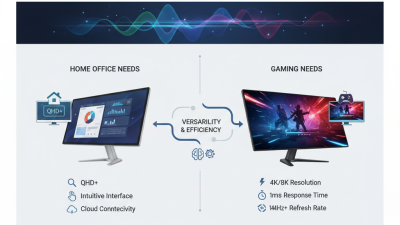
Creative and professional monitors emphasize pressure sensitivity, color consistency, and precise stylus control. They serve design studios, digital signage teams, and technical review desks. For home offices, compact USB-C displays can add touch control without replacing a laptop. Check port bandwidth, stand adjustment, touch compatibility, and long-session comfort before purchase. A monitor that feels impressive for five minutes may become tiring after two hours. That limitation is easy to miss. The strongest choice matches the workflow, cleaning routine, lighting, and user skill level.

How to Evaluate Performance, Compatibility, and Ergonomics

A top touch screen monitor in 2026 should respond quickly, connect cleanly, and remain comfortable after hours of use. Check touch latency, refresh rate, brightness, and color consistency rather than trusting resolution alone. A sharp panel can still feel slow when dragging a file or signing a digital form. Verify USB-HID support, video input standards, and operating-system compatibility before buying. Some displays carry video through USB-C but require a separate cable for touch data. That small detail causes frequent setup failures.

Ergonomics deserves equal attention. OSHA’s Computer Workstations eTool recommends placing the monitor about 20 to 40 inches from the user, with the top edge at or slightly below eye level. A height-adjustable stand, broad tilt range, and VESA mounting support make that easier. Touch use also demands practical target sizes. WCAG 2.2 specifies a 24 by 24 CSS pixel minimum target size in many cases, while WebAIM’s 2024 Million report found detectable WCAG failures on 95.9% of tested home pages. Accessibility cannot be assumed. I still overvalue high refresh rates during testing; they matter less when touch calibration drifts or glare forces awkward wrist angles. Test the screen with dry fingers, a stylus, and real cables. No laboratory score captures every desk.

Choosing the Best Touch Screen Monitor for Your Needs

Choosing the best touch screen monitor in 2026 starts with your daily workflow, not headline specifications. For document work, a 24- to 27-inch display usually balances desk space and comfortable reach. For design or control-room tasks, larger sizes provide clearer menus and fewer taps. MarketsandMarkets reports that the global touchscreen market could grow from about $77.6 billion in 2023 to $106.8 billion by 2028. However, that figure covers phones, kiosks, vehicles, and monitors. Market definitions vary, so treat forecasts carefully.

Touch response matters more than many buyers expect. Look for smooth ten-point touch, low latency, and accurate edge detection. A gloved hand may behave differently from a bare finger. Test both. Viewing angle also affects shared work, especially when two people stand beside the screen. Industry display research from Omdia continues to track strong demand for interactive displays in education, business, and public environments. That trend supports durable touch hardware, but it does not guarantee every panel fits your room.

Check height adjustment, glare control, connection ports, and cleaning instructions. A glossy surface can make a bright window feel like a mirror. A matte coating may reduce reflections but soften image contrast. Power use deserves attention too; certification data from ENERGY STAR can help compare efficient models. I would not ignore speakers, either. They are convenient, yet often weak. One overlooked issue remains hand fatigue. Reaching across a large screen repeatedly can become tiring. The best choice may be smaller, simpler, and less impressive on paper.