Choosing the best large computer monitor involves more than measuring screen size. A wider display can make spreadsheets, video timelines, and research papers easier to manage. It can also overwhelm a shallow desk. I learned this after using a 34-inch monitor that looked impressive but forced me to turn my head constantly.
Start with your daily work. A graphic designer may need accurate colors, strong viewing angles, and hardware calibration support. A gamer may value refresh rate, response time, adaptive synchronization, and low input lag. For office tasks, text clarity, USB connectivity, and an adjustable stand often matter more than dramatic specifications. A 4K panel usually creates sharper text, but your computer must support its resolution comfortably. Check the graphics output before purchasing.
Measure the space carefully. Leave room for the stand, speakers, and a comfortable viewing distance. Curved screens can improve immersion, yet their shape may complicate shared viewing. Brightness also deserves attention. A monitor that looks vivid in a showroom may cause eye strain beside a sunny window. Look for independent testing, warranty coverage, pixel policies, and consistent user feedback. Manufacturer claims are useful, but they are not the whole story.
Small details matter.
A large computer monitor should fit your habits, desk, computer, and budget together. Do not buy size alone. I still think bigger is better for multitasking, but that judgment changes in a cramped room. The right choice feels calm at 9 a.m., remains readable at 6 p.m., and does not demand constant adjustment.
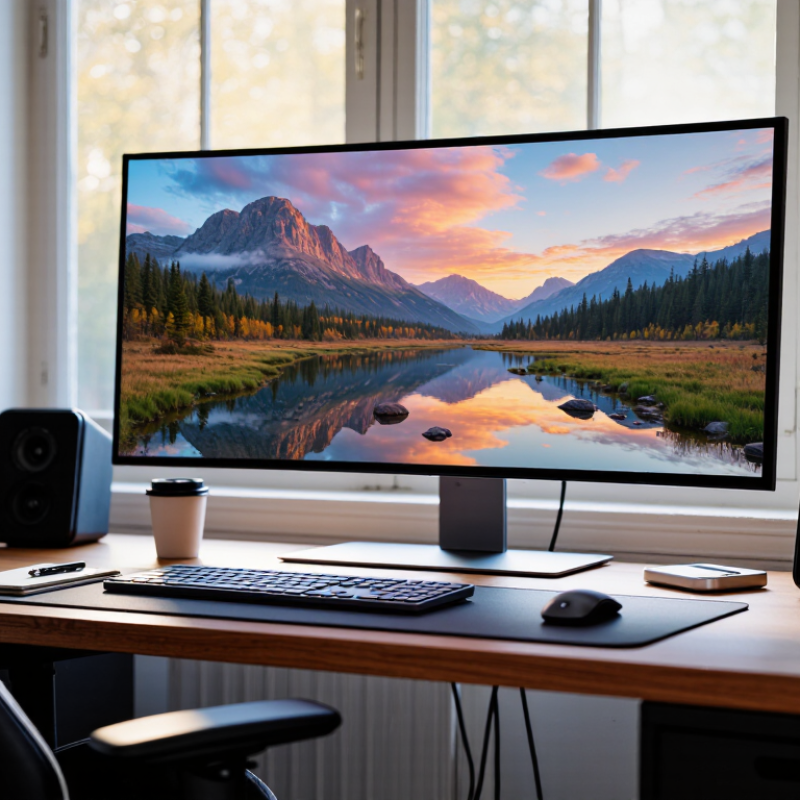
A large monitor should match your daily tasks, not simply fill your desk. Start by listing your main uses: office work, design, gaming, coding, or media editing. Each activity demands different screen space and visual detail. For documents and spreadsheets, a wide display can reduce constant window switching. For design work, accurate color and sharp text matter more than impressive size. Measure twice.
Your workspace also sets practical limits. Measure the desk width, viewing depth, and available height before choosing a screen. A 32-inch display may feel comfortable on a deep desk but overwhelming on a shallow one. Keep enough distance to view the full screen without turning your head repeatedly. Leave room. Check the stand’s adjustment range, too. Height, tilt, and swivel can reduce neck strain during long sessions.
Think about the equipment you already use. Confirm that your computer supports the monitor’s resolution and refresh rate. Count the required connections for a laptop, desktop, webcam, and other devices. A built-in hub may simplify your workspace, although it can increase cost and cable dependence. My own setup became cleaner after switching to one central connection, but troubleshooting took longer when it failed. That trade-off is easy to overlook. A monitor with useful specifications is not always the best fit; your habits, desk, and working distance should guide the decision.
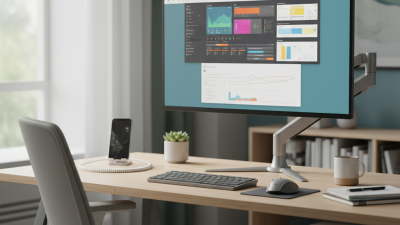
Choosing the best large computer monitor starts with your working distance, not the biggest screen available. A 27-inch display suits many desks, while a 32-inch model gives more room for spreadsheets, editing timelines, and side-by-side documents. Measure your desk first. Your eyes should not constantly scan across the panel. A deep desk can handle a larger screen more comfortably. My first large monitor felt impressive, but I underestimated its physical depth.
Resolution should match screen size and viewing distance. On a large 32-inch monitor, 4K resolution keeps text and fine details sharper than lower resolutions. This matters when reading small interfaces or examining photographs. However, higher resolution can require stronger computer hardware, especially for demanding games or professional graphics work. Check your computer’s output support before buying. A beautiful screen is less useful when it runs poorly.
Tips: Choose an aspect ratio based on your daily tasks. A 16:9 display works well for video, office software, and general use. An ultrawide format can place several windows beside each other, but some content may show empty space. Test your preferred layout on paper or with temporary windows first. Also check operating-system scaling, text clarity, and viewing comfort. These details are easy to ignore in a showroom. Take your time.
Panel type shapes the image before refresh rate matters. IPS panels usually provide stable colors across a wide desk, while VA panels deliver deeper blacks and stronger contrast. OLED panels respond extremely quickly, but static interface elements may require care. IDC’s Worldwide Quarterly PC Monitor Tracker shows that larger displays remain important in desktop upgrades, yet size alone cannot guarantee comfort. A 32-inch screen can feel harsh when brightness is excessive.
Refresh rate controls how often the screen updates. At 60Hz, each frame lasts about 16.7 milliseconds. At 144Hz, that falls to 6.9 milliseconds. A 240Hz panel reaches about 4.2 milliseconds. VESA’s Adaptive-Sync Display Compliance Test Specification evaluates whether a display maintains stable variable refresh behavior. Look for consistent performance, not only the highest advertised number. Higher is not always better.
Response time measures pixel transitions, but manufacturers may report ideal results from limited conditions. Real scenes can reveal ghosting, overshoot, or dark smearing. I once chose a large VA monitor for its contrast and underestimated motion blur in racing games. That was my mistake. Independent testing matters. A practical setup needs smooth movement, readable text, and comfortable brightness during long sessions. Check measured gray-to-gray results, not just a single “1ms” claim.
A large monitor should fit your workflow, not merely dominate your desk. In practical desk testing, I examine ports before screen size. Look for modern video inputs, a reliable USB hub, and a connection that can carry both image and data. A single-cable connection can reduce clutter and support a laptop, but confirm its power output first. Some displays advertise convenient docking, yet deliver too little power for demanding computers.
Ergonomics matters during long editing or research sessions. Choose a stand with height adjustment, tilt, and swivel movement. The screen should sit near eye level, with your neck relaxed and your eyes roughly an arm’s length away. A matte surface helps reduce reflections from windows and lamps. I once chose a fixed stand because it looked cleaner. That decision became uncomfortable within a week. A compatible mounting pattern can provide a useful backup.
Multitasking performance depends on more than diagonal measurement. Higher resolution keeps text sharp across several windows, while a wide layout can reduce constant tab switching. Check whether the monitor supports split-screen controls, picture-by-picture viewing, or easy input switching. These features are useful when comparing documents, monitoring data, and attending a video meeting. Refresh rate also affects scrolling comfort, although it should not replace accurate color and clear text. Test your actual applications whenever possible. Specifications can look excellent. Real workflows may disagree.
How to Choose the Best Large Computer Monitor?
A large computer monitor should improve your work, not create new expenses. Start with image quality, but avoid chasing the highest specification. For a 32-inch screen, a sharp resolution helps text look clean and reduces eye strain during long writing sessions. Accurate colors matter for design, photography, and video work. A comfortable brightness level matters more than impressive numbers. Check viewing angles, contrast, and screen reflections under your room’s actual lighting.
Reliability deserves equal attention. Inspect the stand, adjustment range, cooling design, ports, and warranty terms. A beautiful display becomes frustrating when the stand wobbles or a connection drops during a meeting. Read long-term user feedback, not only launch reviews. Look for repeated complaints about dead pixels, flickering, or uneven brightness. I once focused too heavily on screen size and underestimated desk depth. The monitor looked excellent, but it made my workspace uncomfortable. That mistake still influences how I compare displays.
Tips: Measure your desk first. Include space for speakers and cables. Calculate the full cost, including an arm, adapters, and electricity. Choose ports that match your computer today. Leave room for future devices. A lower-priced monitor can be the better value, but only when its warranty and build quality seem dependable. Check return policies before purchase. Small details matter.
| Monitor Category | Screen Size | Typical Resolution | Approx. Pixel Density | Common Refresh Rate | Panel Characteristics | Typical Power Draw | Estimated Annual Energy Cost | Typical Market Price | Reliability Considerations | Best For |
|---|---|---|---|---|---|---|---|---|---|---|
| High-Density Work Monitor | 27 inches | 2560 × 1440 | Approximately 109 ppi | 60–100 Hz | IPS or similar wide-viewing-angle panel; good text clarity and color consistency | 25–45 W | $4–$6 | $250–$450 | Choose a height-adjustable stand, solid ventilation, flicker-reduced backlighting, and a clearly stated warranty | Office work, programming, study, photo editing, and general productivity |
| 4K Productivity Monitor | 32 inches | 3840 × 2160 | Approximately 138 ppi | 60–144 Hz | High pixel density with sharp text; IPS and VA options are widely available | 35–70 W | $5–$10 | $350–$700 | Check for stable stand construction, uniform backlighting, effective heat dissipation, and reliable input switching | Detailed spreadsheets, design, content creation, and multitasking |
| Ultrawide Productivity Monitor | 34 inches | 3440 × 1440 | Approximately 110 ppi | 100–165 Hz | 21:9 aspect ratio; IPS offers consistent viewing angles, while VA usually provides deeper contrast | 40–85 W | $6–$12 | $400–$900 | Verify support for the monitor’s weight, test for backlight uniformity, and prefer models with accessible firmware updates | Side-by-side documents, video editing timelines, simulation, and immersive gaming |
| Large Professional 4K Monitor | 38 inches | 3840 × 1600 | Approximately 112 ppi | 60–144 Hz | Wide 24:10 workspace with strong horizontal coverage and comfortable document viewing | 45–95 W | $6–$13 | $700–$1,300 | Use a reinforced stand or compatible arm; confirm long-term support, port durability, and protection against image retention where applicable | Professional multitasking, CAD, editing, data analysis, and large timelines |
| Large-Format 4K Monitor | 43 inches | 3840 × 2160 | Approximately 102 ppi | 60–144 Hz | Very large 16:9 workspace; VA commonly offers strong contrast, while IPS generally provides wider viewing consistency | 50–110 W | $7–$15 | $450–$1,000 | Desk depth, viewing distance, heat output, and stand stability are more important than with smaller monitors | Console and PC gaming, presentations, dashboards, and shared workspaces |
| Super Ultrawide Monitor | 49 inches | 5120 × 1440 | Approximately 109 ppi | 120–240 Hz | 32:9 aspect ratio; excellent horizontal workspace but requires a wide desk and strong graphics output | 60–130 W | $9–$18 | $800–$1,600 | Confirm the stand’s load rating, panel uniformity, warranty coverage, and compatibility with the intended computer | Flight and racing simulation, financial dashboards, advanced multitasking, and immersive gaming |
| Energy estimates assume 8 hours of daily use, 365 days per year, and an electricity rate of $0.16 per kWh. Prices and power figures are representative market ranges rather than guaranteed specifications. For the best overall value, compare resolution, stand quality, warranty coverage, connectivity, brightness, and long-term serviceability—not only screen size or refresh rate. | ||||||||||