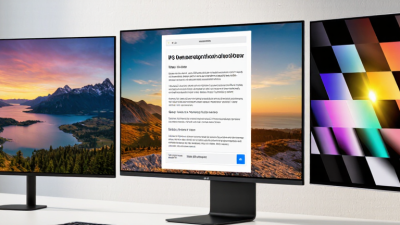
What Is a Display Monitor and What Types Are There?
A display monitor is the screen that turns a computer’s digital output into images, text, and video. Yet choosing one is not as simple as comparing prices or screen sizes. Brightness, resolution, refresh rate, color accuracy, and viewing distance all affect what you see. Raymond Soneira, display analyst and founder of DisplayMate, has described the display as “the most important component of a smartphone.” His point also applies to monitors: the screen shapes much of our daily experience with a device.
This guide explains what a display monitor is and how its main types differ. LCD monitors use liquid crystals with a backlight, while OLED screens create light at the pixel level. LED usually describes an LCD monitor’s backlighting, not a separate screen technology. You will also encounter IPS, VA, and TN panels, each with different strengths in color, contrast, and response time. Small differences count. A vivid image in a showroom may look less impressive beside a bright window or during long work sessions.
The sections ahead cover common monitor categories, their practical uses, and the specifications worth checking before you buy. We will look at office, gaming, creative-work, and portable monitors, along with curved and ultrawide designs. No single type suits everyone. A fast gaming screen may be unnecessary for spreadsheets, while an affordable office monitor may disappoint someone editing color-critical images. Specifications help, but they do not tell the whole story; comfort and personal preference still matter.
What a Display Monitor Is and What It Does
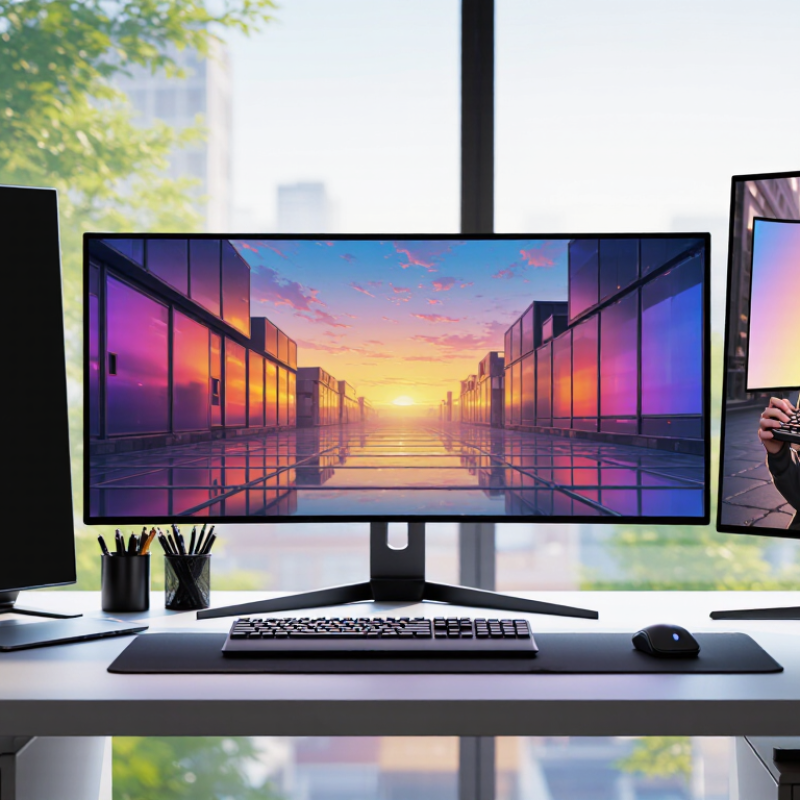
A display monitor is an output device that turns a computer’s video signal into visible images. It presents text, photos, video, and interface elements on a screen. Tiny pixels combine red, green, and blue light to create colors. LCD monitors use a backlight; OLED displays produce light at each pixel. A monitor can also affect how smoothly motion appears, how accurately colors look, and how comfortable details are to read. It does not improve the source image by itself. A sharp screen cannot restore detail that was never captured.
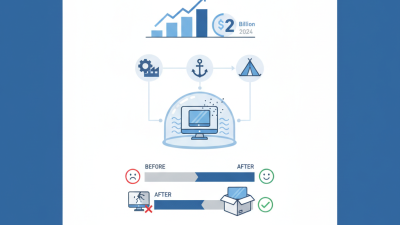
The 2024 Global E-waste Monitor, produced by UNITAR and the International Telecommunication Union, estimates that the world generated 62 million tonnes of electronic waste in 2022. Only 22.3% was documented as formally collected and recycled. These figures cover all electronic waste, not monitors alone, but they underline why screen lifespan and responsible disposal matter. A practical choice depends on the work: spreadsheets need clear text, while video editing benefits from reliable color reproduction. Bigger is not always better.
Tips: Set the monitor near eye level and adjust brightness to suit the room. Check resolution and connections before buying. Keep the screen clean, but follow the manufacturer’s care instructions; I sometimes forget that simple step.
How a Monitor Produces and Presents Images
A monitor turns digital image data into controlled light. Its graphics signal assigns values to pixels, tiny picture elements arranged in rows and columns. Each pixel changes color and brightness many times per second, creating the motion you see. Light becomes a picture.
In an LCD monitor, a backlight shines through liquid crystals and color filters. The crystals regulate how much red, green, or blue light passes through.
An OLED display works differently: each pixel emits its own light, allowing dark areas to switch off locally. That distinction affects contrast, power use, and how black scenes appear. Real screens also vary with viewing angle and calibration.
Color accuracy depends on more than the panel. Signal standards define the colors a display should reproduce: ITU-R BT.709 specifies HDTV red, green, and blue primary coordinates. For HDR brightness, VESA’s DisplayHDR specification includes tiers such as 400 and 1,000 cd/m² peak luminance. These figures describe tested capabilities, not what every scene will reach. A bright window on screen may look vivid, yet poor room lighting or incorrect settings can flatten its detail. The explanation sounds neat; real-world tuning is messier.
Key Components and Technical Specifications
A display monitor converts a computer’s video signal into visible pixels. Its key components include the panel, backlight or self-emitting pixels, control circuitry, and input ports. Resolution describes pixel count: 2560 × 1440 provides more detail than 1920 × 1080 on the same screen size. Pixel density matters too. A 27-inch screen can make fine text look sharper than a larger screen with the same resolution.
Refresh rate, measured in hertz, indicates how often the image updates. A 60 Hz panel suits many office tasks; higher rates can make scrolling and fast motion appear smoother. Response time describes pixel transitions, but testing methods vary, so one number rarely tells the whole story. Brightness is measured in nits, while contrast compares bright and dark areas. Color gamut indicates the range of colors a display can reproduce. VESA’s DisplayHDR Compliance Test Specification sets testing criteria for brightness, color, and black levels. Useful detail.
IDC’s Worldwide Quarterly PC Monitor Tracker reported 125.9 million monitor shipments worldwide in 2023. That scale makes clear why specifications matter across everyday work and entertainment, though shipment data cannot say which panel suits a particular user. I still find it easy to overvalue resolution. Glare, viewing distance, and port compatibility can matter just as much. Check that the monitor’s inputs support the computer’s required resolution and refresh rate.
Major Types of Display Monitors
Display monitors use different panel technologies, and each handles light in its own way. LCD monitors use liquid crystals to shape light from a backlight. Many use LED backlights, so “LED monitor” often describes an LCD design rather than a separate panel type. These screens suit everyday work, classrooms, and general home use. They can show text clearly, though contrast varies between models.
OLED monitors use pixels that produce their own light. Each pixel can switch off, creating deep blacks and strong contrast. Dark scenes look vivid. Mini-LED monitors remain LCD displays but use many small backlight zones, which can improve brightness and contrast. Bright objects against dark backgrounds may still show a faint glow, depending on the screen. CRT monitors, once common, create images with electron beams and are now mostly found in older setups. The categories can blur, and labels alone do not tell you how a monitor will look. Room lighting, viewing distance, and the work on screen matter too. A bright office can make a glossy display distracting. I would compare actual image quality where possible; specifications do not always predict the experience.
How Monitor Types Suit Different Uses
A monitor should fit the work, room, and viewing distance—not just look impressive on a specification sheet. IDC’s Worldwide Quarterly PC Monitor Tracker estimated 125.9 million PC monitor shipments in 2023, reflecting broad demand across home and workplace setups. For spreadsheets, email, and shared desks, a 24- to 27-inch IPS monitor usually offers readable text and wide viewing angles. Matte finishes can also reduce reflections from overhead lights. A practical office choice.
Gaming needs a different balance. High refresh rates make fast movement appear smoother, while variable refresh technology can reduce visible tearing. These features matter most in quick-action games, but they may add cost without helping ordinary document work. For photo editing, an IPS display with stable color and useful adjustment controls is often more dependable than a screen chosen only for vivid saturation. VESA’s DisplayHDR standards use brightness tiers, including a 400-nit level, giving shoppers a measurable starting point for comparing HDR claims.
Portable monitors suit travel or temporary second screens; their smaller panels and limited stands can feel cramped during long sessions. OLED can deliver deep blacks and strong contrast for films, though static interface elements may call for sensible brightness and screen-saver habits. The trade-off is real. No panel type solves every problem. Measure desk depth, check text sharpness at your normal viewing distance, and consider whether the extra features will actually be used.
Display Monitor Resolutions and Typical Uses
A display monitor is an output device that shows visual information from a computer or other source. Different resolution formats suit different tasks and screen sizes.
How to read the chart: Pixel counts are calculated from each resolution’s width and height and rounded to the nearest 0.1 megapixels. Full HD is common for everyday use; QHD offers more workspace for multitasking; UHD provides extra detail for high-resolution content; and ultrawide formats provide a wider workspace for side-by-side windows. The best choice also depends on screen size, viewing distance, and the tasks being performed.