How to Troubleshoot Common Touch Screen Issues?
Touch screens have become essential in modern devices. They provide a user-friendly interface for smartphones, tablets, and more. However, users often face issues with these touch screens that can be frustrating. Problems may arise from hardware malfunctions, software glitches, or even user errors.
When touch screens become unresponsive, it can disrupt daily tasks. You might find yourself tapping repeatedly without any reaction. Sometimes, the screen might respond inconsistently, leading to confusion. Checking for dirt or moisture is a simple step that many overlook. Ensuring your device is clean can solve many touch screen issues.
In more complex cases, software updates may be the culprit. Users frequently forget to check for necessary updates. Ignoring these can lead to performance problems. Reflection is necessary here: are we doing all we can to keep our devices running smoothly? Troubleshooting may feel tedious, but it helps in understanding our devices better. Addressing common issues is a vital skill in today's digital world.

Identify the Types of Common Touch Screen Issues
Touch screens can be immensely convenient, but they often come with issues. Identifying common problems can lead to effective troubleshooting. One frequent issue is unresponsiveness. You might touch the screen, but nothing happens. This can stem from software glitches or dirt on the display.
Another common problem is ghost touches. This occurs when the screen registers touches that haven’t happened. It can be caused by faulty hardware or interference. Sometimes, the screen might misinterpret your gestures, leading to frustration. Users may need to inspect for screen protectors or cases that could be causing this behavior.
Lastly, calibration issues can lead to inaccurate touch responses. When the screen doesn’t register your taps accurately, it disrupts usage. Regularly updating the software might help, but users should also consider the physical state of their device. A cracked or damaged screen can exacerbate touch problems, requiring a closer look at the device's condition and sometimes a reality check about its longevity.
Check for Physical Damage on the Touch Screen
When troubleshooting touch screen issues, checking for physical damage should be a priority. A report from a leading electronics research firm indicated that nearly 35% of touch screen failures stem from physical damage. This includes cracks, scratches, and breaks. Any visible signs of wear can significantly impair responsiveness. If your screen shows these issues, it might be time for a replacement.
Many users overlook simple physical inspections. It’s not just about faults on the surface. Internal damage, caused by drops or pressure, can lead to malfunctioning screens. You may notice unresponsive areas or erratic movements. Such problems often signify a more serious issue. According to industry benchmarks, up to 50% of touch screen devices fail due to unnoticed internal cracks.
Also, consider the environment your device inhabits. Dirt and moisture can enter through cracks and disrupt functionality. Regular cleaning can help maintain performance. However, if significant damage is present, no amount of cleaning will suffice. Avoid delays in addressing visible issues. Ignoring a small crack today could lead to complete failure tomorrow.
Touch Screen Issues Troubleshooting Analysis
Calibrate the Touch Screen for Accurate Response
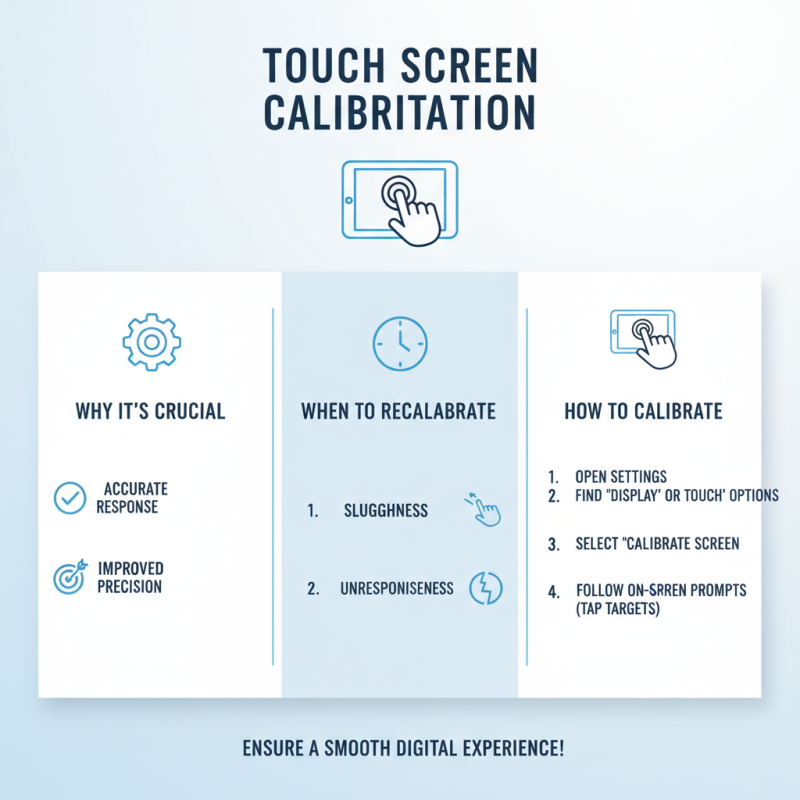
Calibrating a touch screen is crucial for accurate response. This process ensures that the screen accurately detects your touch. If your device feels sluggish or unresponsive, recalibration might be necessary.
To initiate calibration, look for settings on your device. Often, there's an option for "Touch Calibration." Follow the prompts on the screen. Sometimes, it might seem tricky. But patience is key. Make sure you follow each step carefully.
Tips: Keep your hands clean and dry during calibration. Dirty fingers can interfere with accuracy. If issues persist, consider restarting your device before trying again.
Touch screens may not always respond perfectly. You might still face occasional lags or errors. Don’t be discouraged if calibration doesn’t solve everything. Sometimes, hardware issues exist. Over time, you might notice wear and tear affecting performance. Regular upkeep is important for a functioning touch experience.
Update Touch Screen Drivers and Software
Touch screen issues can be frustrating. One common fix involves updating touch screen drivers and software. This process can solve glitches and improve performance. Outdated drivers may lead to sensitivity problems or unresponsiveness. Regular updates ensure optimal functionality.
To update your drivers, visit the device manager on your system. Locate the touch screen device and right-click on it. Select the option to update the driver. Be prepared for several prompts. The process may take time, and it won't always be straightforward. Sometimes, the update fails or the software may not be found.
After updating, test the screen responsiveness. If there are still issues, consider other software updates. Check for system updates and install them as necessary. A synced system can enhance touch screen capabilities. Don't hesitate to seek help if updates don't resolve the problem. It's okay to feel stuck sometimes. Troubleshooting is part of the learning process.
Reset the Device to Resolve Persistent Issues
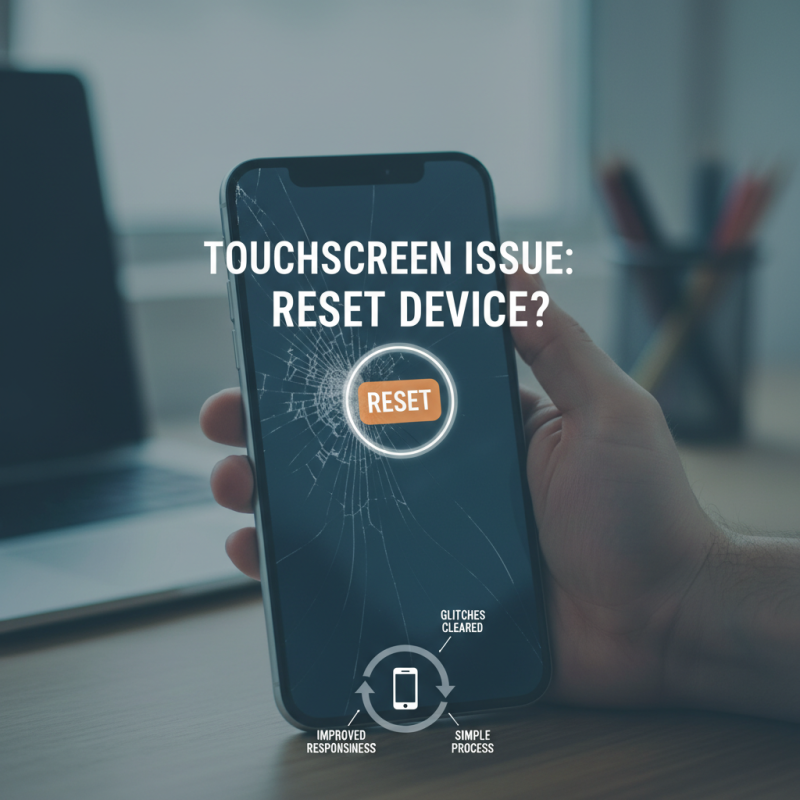
Persistent touch screen issues can be frustrating. Sometimes, it may seem like you have tried everything. When this happens, consider resetting your device. A reset can clear temporary glitches and improve responsiveness. It is a simple process that might resolve many stubborn problems.
To reset your device, locate the power button. Press and hold it until the device turns off. Wait a moment, then turn it back on. This can help restore normal functionality. However, bear in mind that resetting may not fix every issue. If problems persist, check for software updates. Outdated software can lead to touch screen complications.
If resetting does not bring improvement, you might want to explore other solutions. Examine the screen for dirt or debris. Cleaning it with a microfiber cloth can sometimes enhance performance. Also, ensure that your fingers are not damp. Wet fingers can hinder touch sensitivity. Remember, troubleshooting is a process. It's okay to feel stuck at times. Finding solutions may require some patience and experimentation.