Maximizing Productivity: Choosing the Right PC Screen for Your Home Office Setup
In today's remote work environment, the significance of a well-chosen PC screen cannot be overstated. Numerous studies highlight that the right monitor can enhance productivity by as much as 20-30%. According to a report by the International Data Corporation (IDC), the demand for larger screens, particularly in home office setups, has surged by 35% as workers seek improved visibility and reduced eye strain. Furthermore, a survey from the American Optometric Association found that nearly 70% of individuals working from home experience digital eye strain, underscoring the need for quality displays. As employees transition to more permanent home office arrangements, investing in a suitable PC screen emerges as a critical factor in maximizing efficiency and comfort in the workspace. Thus, understanding the various types of PC screens available and their respective benefits can significantly influence work output and well-being.

Choosing the Ideal Screen Size for Enhanced Comfort and Efficiency
When selecting a PC screen for your home office setup, one of the most critical factors is the screen size. A study conducted by the International Ergonomics Association shows that screen size significantly impacts user comfort and productivity levels. Research indicates that a larger screen, typically in the range of 27 to 32 inches, can reduce eye strain and allow for more efficient multitasking. This size allows users to have multiple windows open side by side, increasing overall workflow efficiency by as much as 30%.
Comfort also plays a crucial role in screen size selection. According to a report by the Display Industry Association, workers who use larger screens reported a 20% decrease in neck and back discomfort compared to those using smaller displays under 24 inches. The human eye benefits from expansive visuals, as larger screens minimize the need for constant refocusing and adjusting of one’s posture. By choosing an ideal screen size tailored to individual tasks and available workspace, users can significantly enhance both their comfort and productivity in their home office environment.
Maximizing Productivity: Ideal Screen Size in Home Office Setup
Understanding Different Screen Resolutions and Their Impact on Clarity
Choosing the right screen resolution is crucial for maximizing productivity in a home office. A display's resolution determines how much detail can be shown on the screen; higher resolutions enable clearer images, sharper text, and ultimately a more comfortable viewing experience. According to a report from the Consumer Technology Association, almost 70% of consumers believe that screen clarity significantly impacts their work efficiency. These findings highlight the importance of selecting a monitor that meets the demands of daily tasks, especially for those spending long hours in front of the screen.
When considering different resolutions, Full HD (1920x1080) is often the minimum recommended for standard office work. However, resolutions such as Quad HD (2560x1440) and 4K (3840x2160) are gaining popularity among professionals who need greater detail for graphic work or multitasking with multiple windows. Research from DisplayMate indicates that moving from a standard HD display to a 4K monitor can reduce eye strain by 25% due to the increased pixel density. This improvement not only enhances clarity but can also lead to fewer breaks, thereby increasing overall productivity in a demanding work environment.
Maximizing Productivity: Choosing the Right PC Screen for Your Home Office Setup - Understanding Different Screen Resolutions and Their Impact on Clarity
| Screen Resolution |
Pixel Dimensions |
Aspect Ratio |
Ideal Use Case |
Clarity Level |
| 1920 x 1080 (Full HD) |
2,073,600 pixels |
16:9 |
General Productivity |
Good |
| 2560 x 1440 (QHD) |
3,686,400 pixels |
16:9 |
Graphic Design & Gaming |
Excellent |
| 3840 x 2160 (4K) |
8,294,400 pixels |
16:9 |
Video Editing & High-End Gaming |
Outstanding |
| 2560 x 1080 (UltraWide) |
2,764,800 pixels |
21:9 |
Multitasking & Gaming |
Good |
| 3840 x 1600 (UltraWide QHD+) |
6,144,000 pixels |
24:10 |
Creative Work & Productivity |
Exceptional |
Exploring Panel Technologies: IPS, TN, and VA for Optimal Viewing
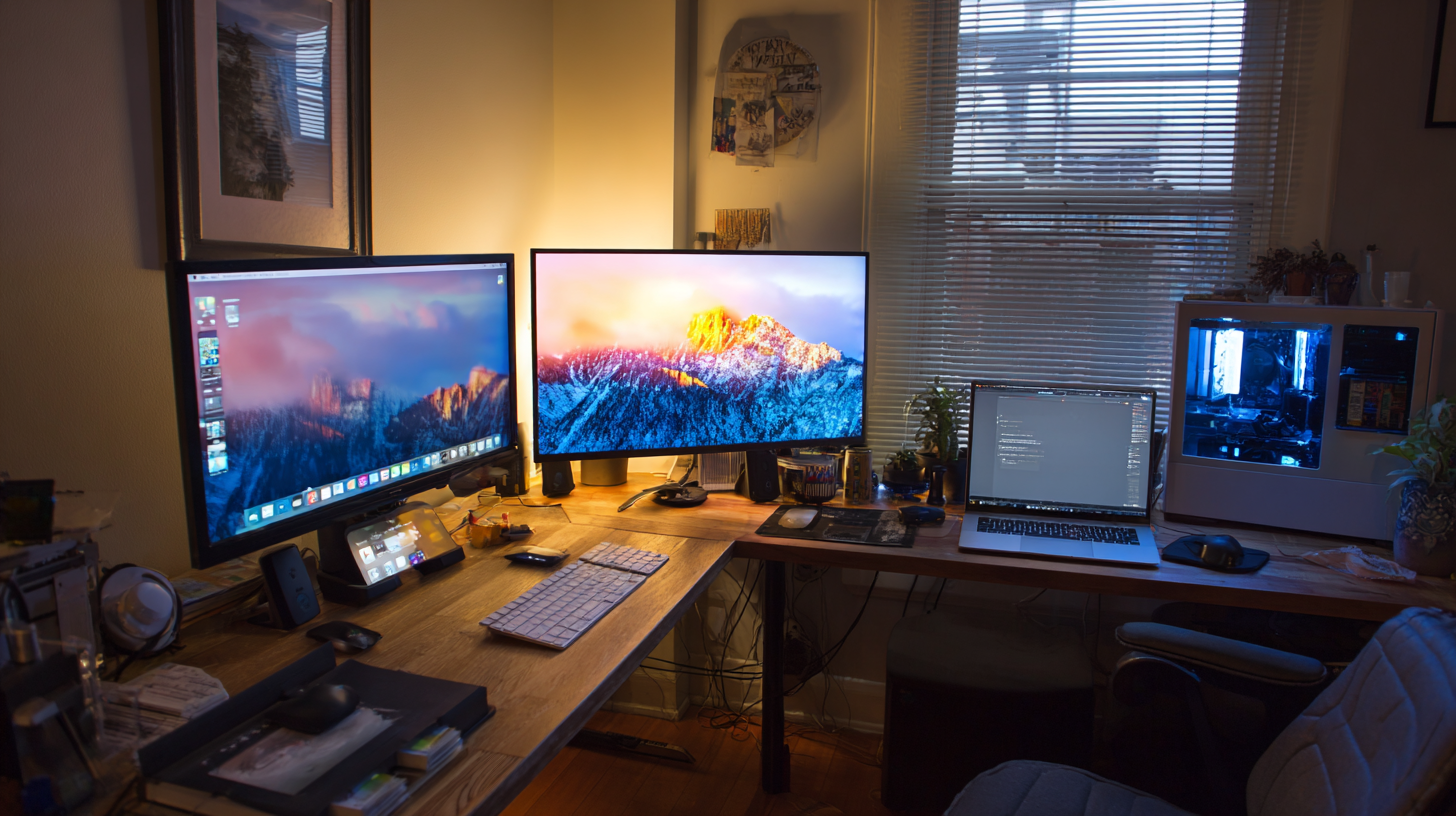 When setting up your home office, choosing the right PC screen is crucial for maximizing productivity. Among the panel technologies available—
IPS, TN,
VA, and the emerging OLED—each has its strengths.
IPS panels are renowned for their excellent color accuracy and wide viewing angles, making them ideal for design work and general office tasks.
They maintain consistent image quality even at sharp angles, which can be beneficial if you often collaborate with others in your workspace.
When setting up your home office, choosing the right PC screen is crucial for maximizing productivity. Among the panel technologies available—
IPS, TN,
VA, and the emerging OLED—each has its strengths.
IPS panels are renowned for their excellent color accuracy and wide viewing angles, making them ideal for design work and general office tasks.
They maintain consistent image quality even at sharp angles, which can be beneficial if you often collaborate with others in your workspace.
On the other hand, VA panels offer impressive contrast ratios and deeper blacks, making them suitable for media consumption and casual gaming.
While TN panels may appeal to competitive gamers due to their fast response times, their color reproduction and viewing angles are inferior compared to IPS and VA options.
With the introduction of OLED technology, users can enjoy vibrant colors and true blacks, but these monitors can be pricier and may not be necessary for basic office use.
Tips: When selecting a monitor, consider the types of tasks you'll be performing most frequently.
If your work involves color-sensitive projects, an IPS panel is the best choice.
For general productivity or casual use, a VA panel can provide a good balance between performance and cost.
Lastly, ensure that the screen size and resolution fit your workspace to enhance your overall experience.
Assessing Ergonomics: Adjustable Stands and Eye Care Features
When setting up a home office, choosing the right PC screen goes beyond just screen size and resolution; ergonomics play a crucial role in maximizing productivity and promoting health. According to a report by the Occupational Safety and Health Administration (OSHA), improper workstation setups contribute to a staggering 50% of workplace injuries, underscoring the importance of adjustable stands.
Adjustable monitors allow users to position their screens at eye level, reducing neck strain and encouraging better posture. This small adjustment can lead to significant improvements in comfort and productivity.
Moreover, eye care features are essential in minimizing digital eye strain, a condition affecting up to 70% of people who regularly use screens, as highlighted by the American Optometric Association (AOA). Features such as blue light filters and flicker-free technology can help reduce the risk of eye fatigue and discomfort, enabling prolonged work sessions without adverse effects. Investing in a monitor that prioritizes these ergonomics and eye care aspects can lead to a healthier work environment, fostering greater focus and efficiency in your daily tasks.
Selecting the Right Connectivity Options for Your Home Office Devices
When setting up a home office, choosing the right connectivity options for your devices is paramount to optimizing productivity. Modern PC screens come equipped with various connectivity ports such as HDMI, DisplayPort, and USB-C. Each of these serves different purposes, so understanding their capabilities can significantly enhance your workflow. For example, HDMI is commonly used for monitors and is compatible with most laptops, while USB-C offers the advantage of delivering power and data simultaneously, reducing cable clutter.
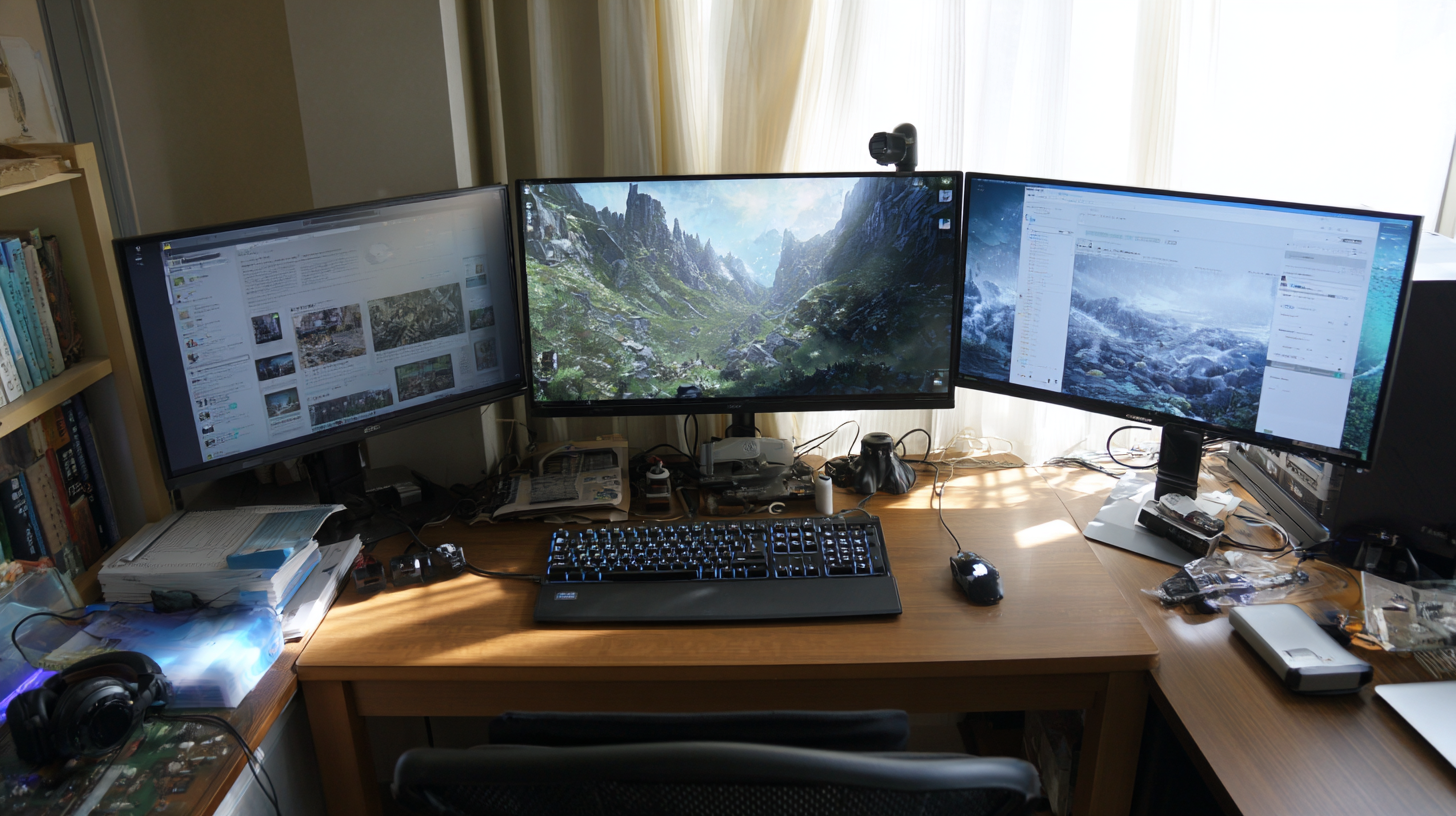
In addition to the types of connections, it's important to consider how many devices you plan to connect to your screen. If you frequently switch between multiple devices, look for a monitor with multiple input options or a KVM switch, which allows seamless transitions between computers without the hassle of plugging and unplugging cables. Moreover, a monitor with built-in USB hubs can simplify connectivity for peripherals like keyboards and mice, further reducing desk clutter and streamlining your workspace. Ensuring all your home office devices communicate effectively will provide a more efficient and enjoyable working environment.