How to Use a Touch Screen Effectively for Better User Experience?
The touch screen has become a ubiquitous interface in our daily lives. From smartphones to tablets, touch screens dominate user interactions. According to a report by Statista, over 50% of global internet traffic occurs on mobile devices, many of which utilize touch screens. This shift underscores the need for effective touch screen usage.
However, many users still struggle with touch screen functionality. Industry studies reveal that 30% of users feel frustrated when interacting with touch screens. This frustration often stems from design flaws or unclear usage instructions. Users sometimes overlook basic gestures, leading to suboptimal experiences. Addressing these issues is vital for improving overall user satisfaction.
Embracing touch screen advancements is critical. The growing popularity of touch-enabled devices calls for an understanding of user preferences. Reports indicate that intuitive designs can increase user engagement by 40%. Yet, many still face challenges. Recognizing these difficulties can help shape better strategies for touch screen interaction. The goal is to enhance usability and ensure a seamless user journey.
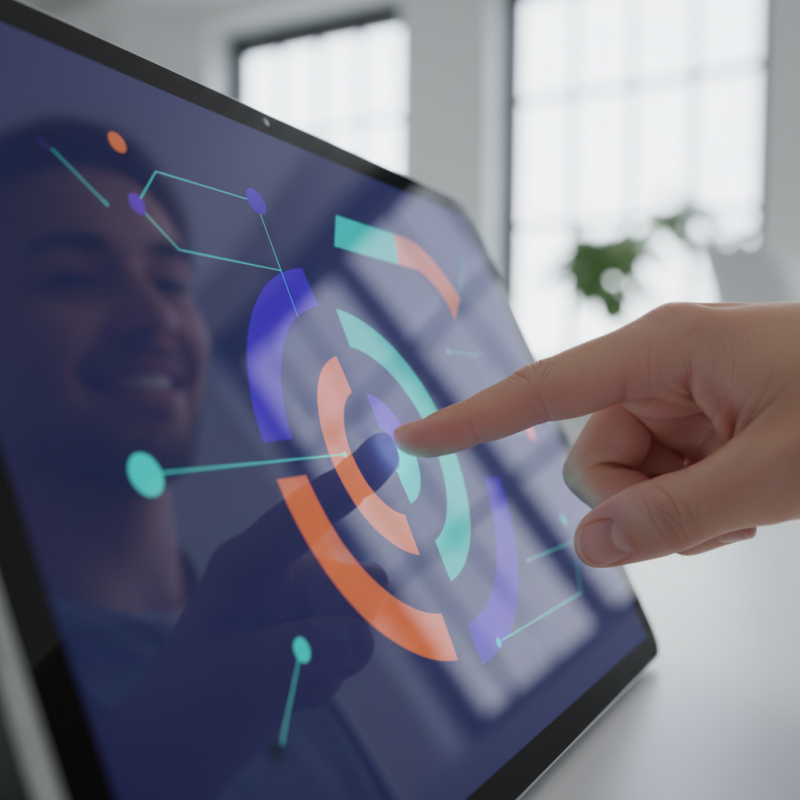
Understanding Touch Screen Technology and User Interaction
Touch screen technology has revolutionized the way users interact with devices. According to a report from the International Data Corporation (IDC), the touch screen market is expected to grow at a CAGR of 7.4% through 2026. This growth highlights the importance of understanding how users engage with touch interfaces. Effective interaction hinges on usability and response times, yet many users face challenges due to design oversights.
A common issue is finger size and gesture recognition. Users with larger fingers may struggle to select small buttons accurately. Research indicates that 90% of touch screen errors stem from unintentional taps. Designers should consider these factors when creating interfaces. For example, increasing button sizes and spacing can enhance user experience significantly.
Tips: Ensure that essential buttons are easily accessible. Use contrasting colors to make them stand out. Regularly test your design with real users to identify usability gaps.
The lack of haptic feedback in many screens can lead to user confusion. Touching a screen that offers no response may cause frustration. Designers need to incorporate visual or auditory cues to indicate successful actions. Furthermore, users expect instant feedback. Data shows that 60% of users abandon interactions when feedback is delayed.
Tips: Implement quick animations to signal actions. Keep users informed with clear notifications. Analyze user engagement regularly to iterate on your design.
Key Features of Touch Screens that Enhance User Experience
Touch screens have transformed how we interact with technology. Their intuitive nature draws users in. However, not all touch screens are created equal. The effectiveness of a touch screen greatly depends on its features. Understanding these can lead to better user experiences.
A major feature is sensitivity. High sensitivity makes it easier to perform tasks. Users can swipe, tap, or pinch with ease. But what happens when the screen is too sensitive? It can lead to accidental actions. Frustration arises as users struggle to control their interactions. Calibration can help, yet it’s not always perfect.
Another key aspect is feedback. Haptic feedback provides a sensation when users touch the screen. This simple feature can enhance confidence during interactions. Without it, users may feel disconnected. Visual feedback is equally important. Clear icons and animations guide users smoothly. But cluttered screens can confuse. Users may find it overwhelming. Striking a balance is essential.
How to Use a Touch Screen Effectively for Better User Experience? - Key Features of Touch Screens that Enhance User Experience
| Feature |
Description |
User Impact |
| Multi-Touch Support |
Allows users to interact with the screen using multiple fingers simultaneously. |
Enhances navigation and enables gestures like pinch-to-zoom. |
| Responsive Feedback |
Provides tactile and visual feedback upon touch. |
Improves user satisfaction by confirming actions. |
| Customizable UI |
Allows users to personalize layout and features of the interface. |
Increases user engagement and comfort while using. |
| Anti-Glare Technology |
Reduces reflections and glare on the screen. |
Improves visibility in bright environments. |
| Durable Material |
Built with high-quality, scratch-resistant materials. |
Increases longevity and reduces maintenance costs. |
Best Practices for Touch Screen Design and Layout Optimization
Touch screen design requires thoughtful consideration of user interaction. A recent report shows that 88% of users prefer intuitive touch interfaces. However, many applications fail to meet this expectation. Effective design begins with clear icons and buttons, which should be at least 44 pixels wide. This size reduces user frustration and errors.
Layout optimization plays a crucial role. Critical functions should be easily accessible. A study found that 75% of users abandon tasks due to complex navigation. To mitigate this, prioritize essential features on the main screen. Avoid clutter; too many options can overwhelm users. Recent findings indicate that a clean interface can boost user satisfaction by up to 36%.
Moreover, feedback mechanisms enhance user experience. A simple tap should produce a response, whether visual or haptic. This confirmation builds user confidence. It’s also vital to rethink color schemes and contrast ratios. Poor visibility can frustrate users, especially in bright environments. Reports suggest that adequate contrast increases touch efficiency by 25%. These insights highlight the importance of continuous iteration in touch screen design.
Common Touch Screen Usage Mistakes and How to Avoid Them
Touch screens simplify our interaction with technology. However, users often overlook crucial details that can enhance their experience.
One common mistake is inadequate calibration. A study found that 30% of users don’t calibrate their screens. This leads to frustrating inaccuracies. Checking your device for calibration settings can save time and effort. Proper calibration enhances precision.
Another frequent error is the lack of protective measures. Research shows that screens are 50% more likely to malfunction without a screen protector. Simple protective accessories can extend device longevity. Many don’t realize that even minor scratches can significantly impact responsiveness. Ignoring maintenance reduces potential functionality.
Gestures and swipes are also often misused. Some users apply excessive force, thinking it will yield better results. A report indicated that 25% of touch screen failures stem from misuse. Applying the right pressure can lead to better performance. Observing how different apps respond can guide appropriate touch techniques. Paying attention to these aspects can improve overall user satisfaction.
Enhancing Accessibility on Touch Screens for Diverse Users
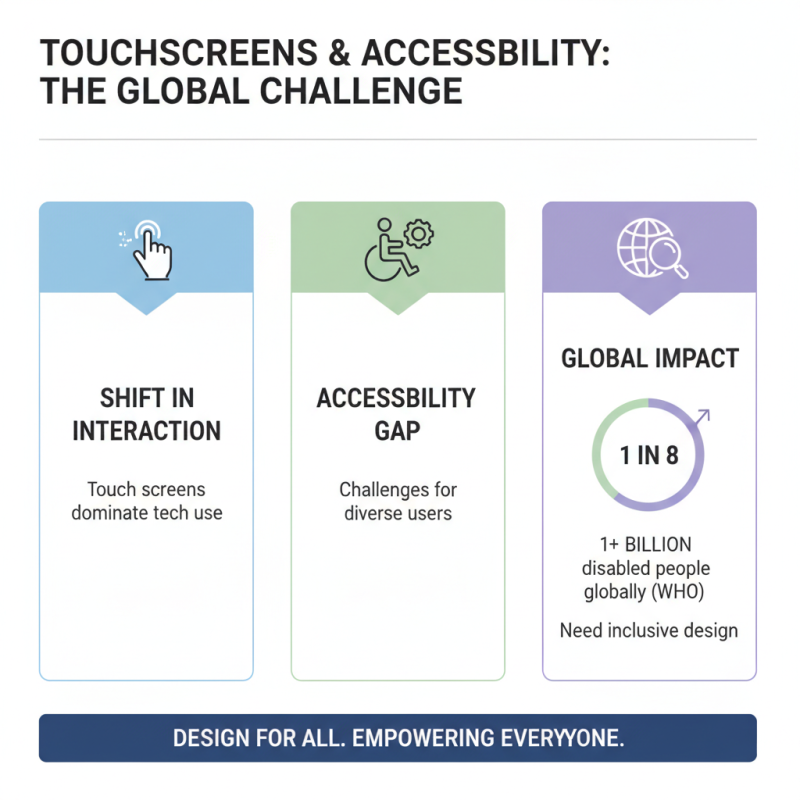
The rise of touch screens has changed how we interact with technology. Yet, accessibility remains a challenge. The World Health Organization estimates that over 1 billion people worldwide experience some form of disability. This underscores the need for designs that cater to diverse users.
To enhance accessibility, consider the size and spacing of touch targets. A touch target should be at least 44x44 pixels to accommodate users with limited dexterity. Additionally, contrast is vital. Using high-contrast colors can help users with visual impairments. Studies indicate that 80% of users can better navigate screens with adequate contrast.
Tips:
- Use haptic feedback to confirm user actions. This small touch can make a significant difference in usability.
- Ensure that important functions are easy to find. A complicated layout can frustrate users.
Reflect on ensuring gestures are intuitive. For instance, pinch-to-zoom may not be straightforward for everyone. Not all users easily understand complex gestures. A simple, straightforward touch can be more effective.